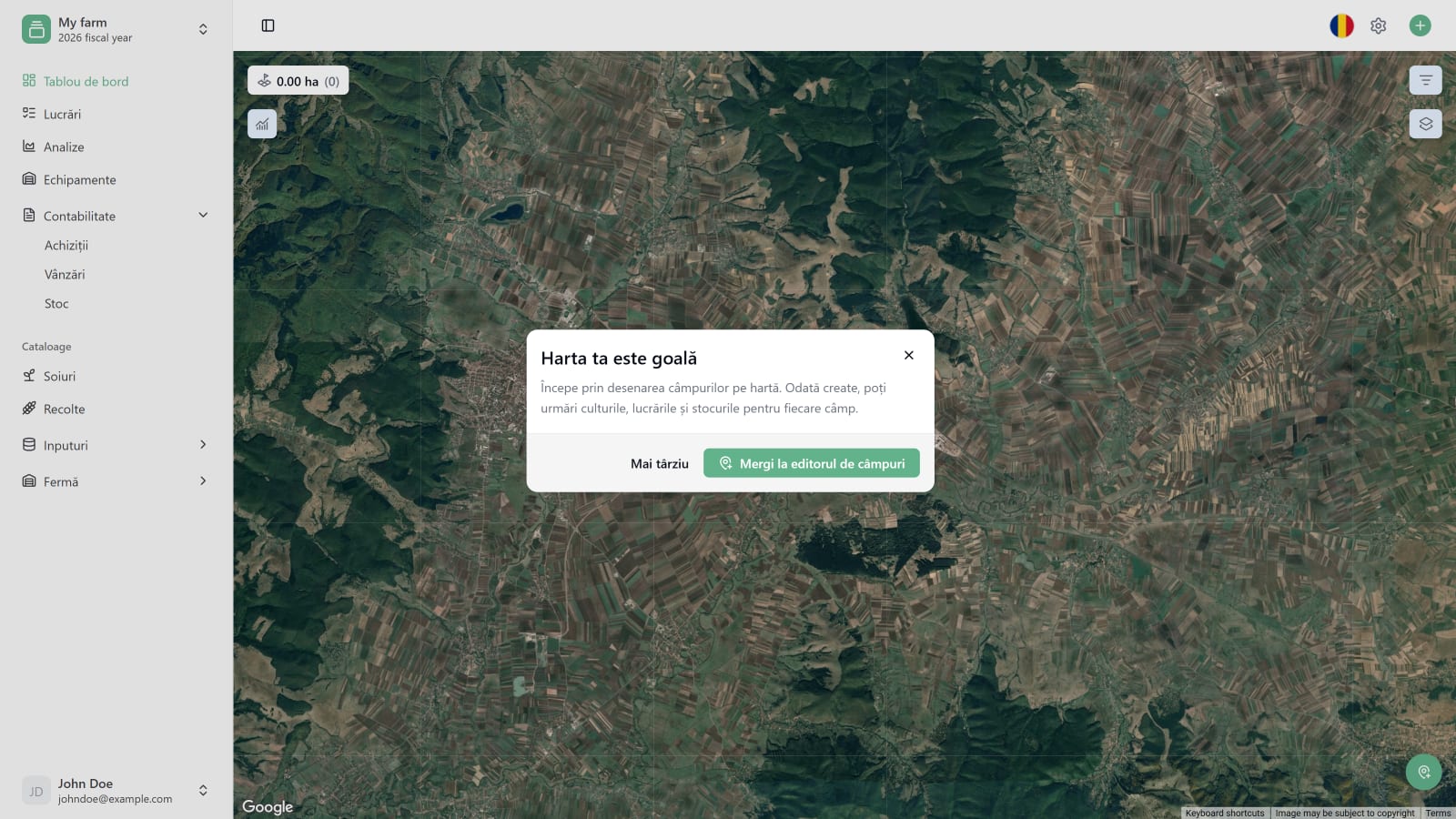
Ferma ta este spațiul central de lucru în Harvest Mate. Tot ce faci — gestionarea câmpurilor, înregistrarea lucrărilor, urmărirea stocurilor, invitarea membrilor echipei — se desfășoară în interiorul ei. Acest ghid te conduce prin configurare completă în mai puțin de cinci minute.
Înainte să începi
Ai nevoie de un cont Harvest Mate. Dacă nu ai unul încă, înregistrează-te la app.harvest-mate.com/sign-in — planul Gratuit îți permite să creezi o fermă imediat, fără card bancar.
Un cont poate conține mai multe ferme. Fiecare fermă are propriul abonament. Pe planul Gratuit poți avea o singură fermă.
Pasul 1 — Completează detaliile fermei
Imediat după înregistrare, Harvest Mate te redirecționează automat către pagina de creare a fermei. Nu vei putea accesa tabloul de bord principal până nu îți creezi propria fermă sau nu ești invitat ca membru în ferma altcuiva.
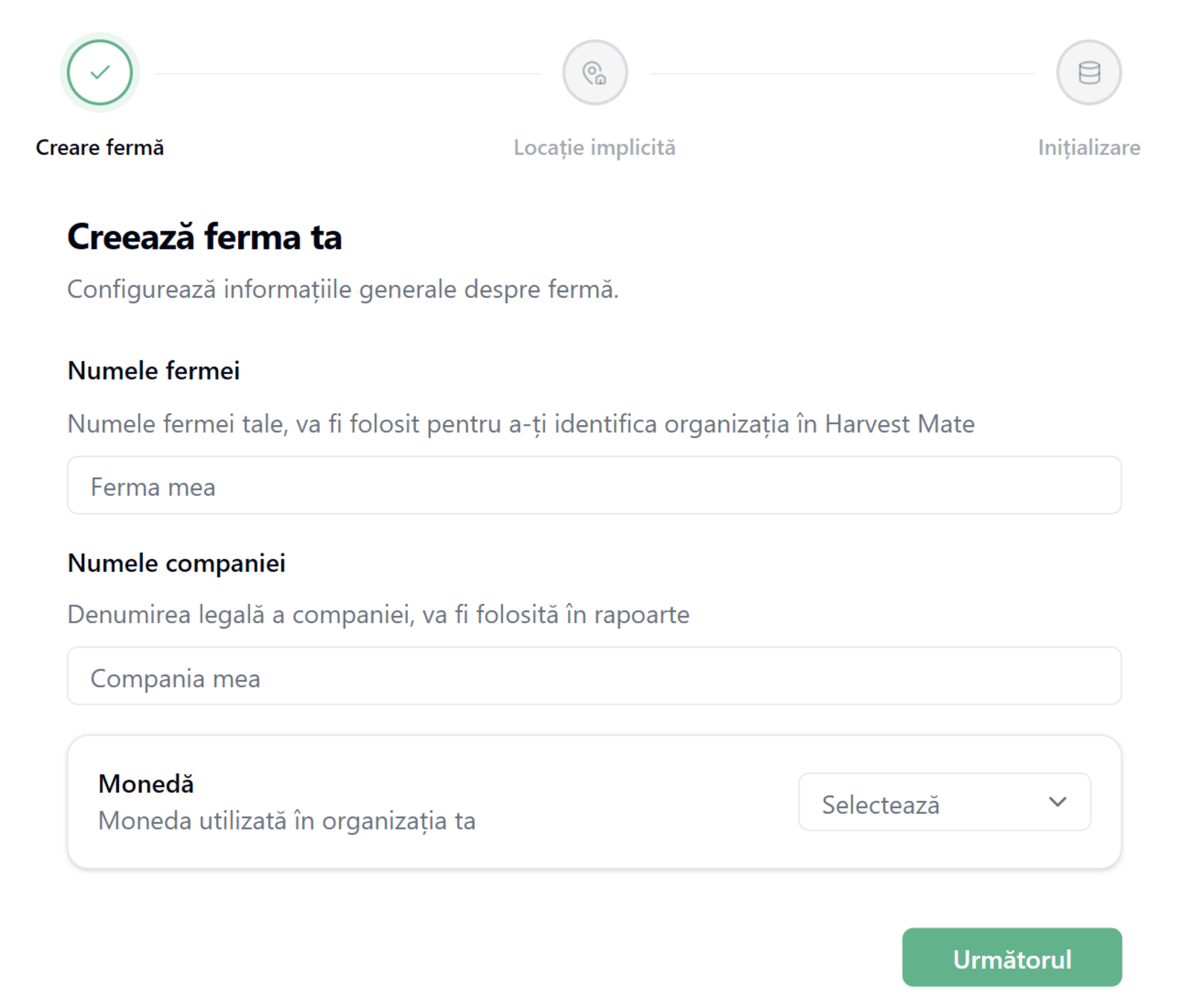
Completează cele trei câmpuri de pe acest ecran:
- Numele fermei (obligatoriu) — Un nume ușor de recunoscut pentru ferma ta. Apare în toată aplicația și îl poți schimba oricând.
- Numele companiei (opțional) — Denumirea legală a companiei tale. Va fi tipărită pe rapoartele exportate din Harvest Mate.
- Moneda (obligatoriu) — Moneda folosită pentru toate calculele de costuri din aplicație.
Alege moneda cu atenție. Odată ce ferma este creată, nu există în prezent o modalitate de a o schimba. Dacă ai selectat-o greșit, contactează echipa noastră de suport la contact@harvestmate.app și te vom ajuta să rezolvi situația.
Pasul 2 — Marchează ferma pe hartă
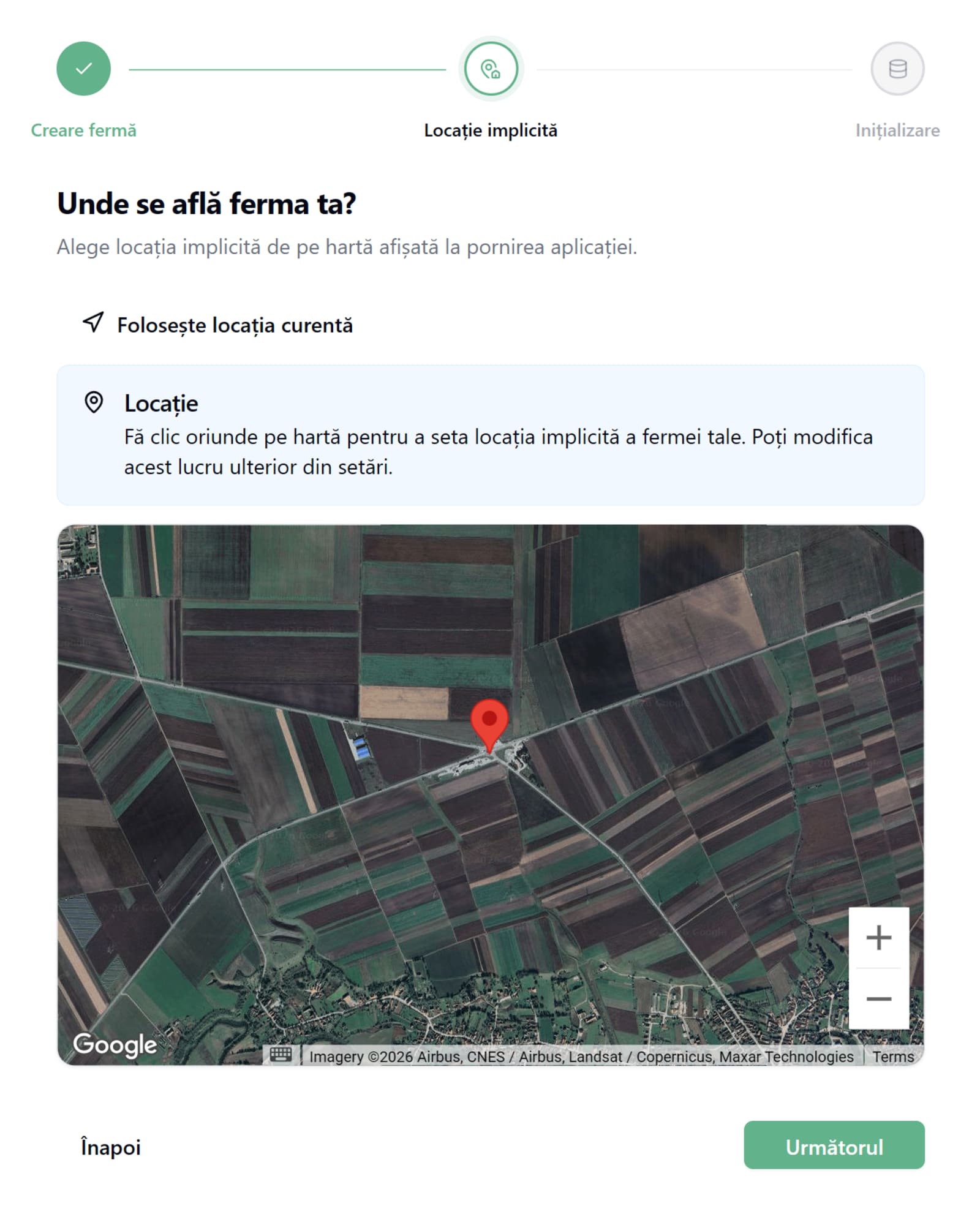
În continuare vei fi rugat să setezi o locație implicită pe hartă. Aceasta este poziția la care se va deschide harta de fiecare dată când pornești aplicația — alege un punct aproape de centrul terenului tău.
Pur și simplu dă clic oriunde pe hartă pentru a plasa un marker. Atât.
Poți lăsa browserul să îți detecteze locația automat. Dacă harta nu se centrează pe tine de la sine, apasă butonul Folosește locația curentă din partea de sus a ecranului.
Poți modifica această locație implicită oricând din setările fermei.
Pasul 3 — Alege limba datelor inițiale
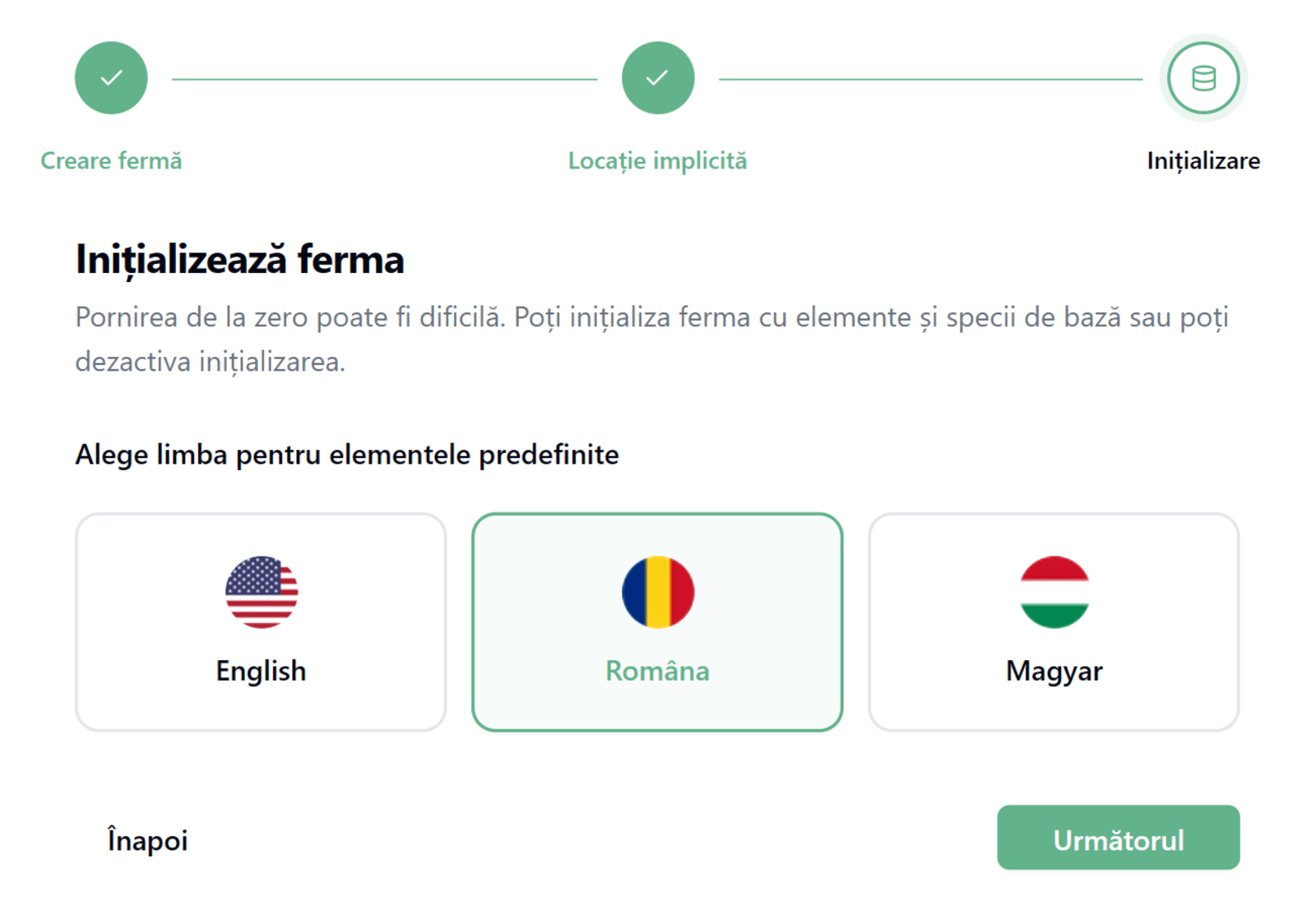
Harvest Mate este complet flexibil — poți crea și personaliza orice resursă din aplicație: culturi, semințe, îngrășăminte, pesticide, unități de măsură, categorii și altele. Nimic nu este impus.
Cu toate acestea, pornirea cu un sistem complet gol poate fi dificilă. De aceea am pregătit o colecție cu cele mai utilizate elemente de care au nevoie majoritatea fermelor încă din prima zi. În acest pas alegi limba în care vor fi create aceste elemente.
Această setare nu poate fi modificată ulterior. Schimbarea limbii aplicației din setări afectează doar interfața — datele tale păstrează limba aleasă aici. Deoarece aceste elemente inițiale vor apărea în rapoartele exportate, îți recomandăm să alegi limba pe care o folosești pentru documentele oficiale. Pentru fermele din România, alege Română.
Pasul 4 — Ești înăuntru
După ce dai clic pe Următorul pe ultimul ecran, Harvest Mate îți creează ferma și te duce direct la tabloul de bord. Spațiul tău de lucru este gata de utilizare.
Vei vedea o hartă goală cu un îndemn de a începe să desenezi câmpurile. Acesta este pasul natural următor — consultă ghidul Adaugă câmpuri. Sau, dacă ți-ai depus deja parcelele în sistemul APIA, cea mai rapidă cale este să le imporți direct.